
A Chrome extension for job hunting on LinkedIn
The recruiter’s email is right there in the post.
PostToHired picks out every recruiter and HR email on the LinkedIn page you’re reading, writes an application for each one using your resume, and opens it in Gmail. You read it over and hit Send.
Works with Gmail. Your PDF resume is attached to every draft.
We’re hiring frontend developers (React, 2–4 yrs) in Pune. If that sounds like you, send your resume to priya.sharma@acme.io
1 · Scan
Find recruiter emails in LinkedIn hiring posts
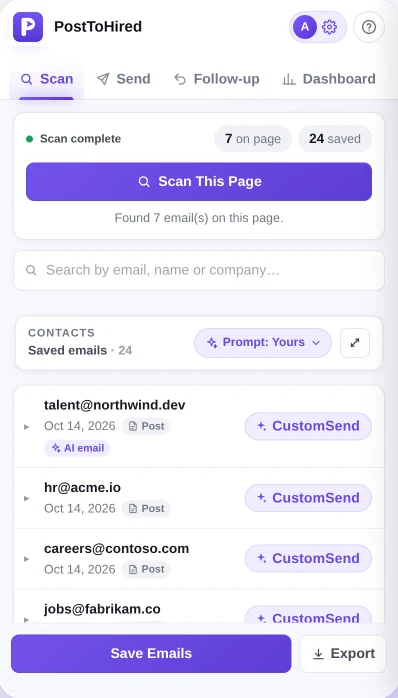
Search LinkedIn for posts like “react developer hiring”, scroll down so more posts load, and click Scan This Page. Every email in those posts is saved along with the post itself, so a week later you still know which job it was for.
- Only real addresses. Each one is matched and checked, nothing is guessed.
- Scan the same feed twice and you won’t get duplicates.
- Export to CSV or TXT, or copy them all at once.
| Name | Company | |
|---|---|---|
| Priya | Acme | priya.sharma@acme.io |
| Talent | Northwind | talent@northwind.dev |
| Contoso | careers@contoso.com | |
| Fabrikam | jobs@fabrikam.co |
2 · Write
A cold email that mentions the actual job
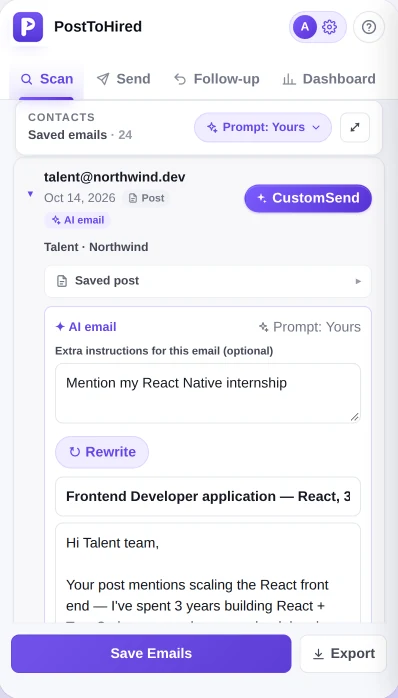
Click CustomSend next to a contact. The AI reads that recruiter’s post and your resume, then writes an email about that role, signed with your own LinkedIn, GitHub or portfolio link. Read it, change what you like, or ask for a rewrite.
- Add a note for one email, like “mention my Python internship”.
- Or write your own prompt with {{name}}, {{company}} and {{postContent}}.
- Each email is written once and kept. It’s only rewritten when you ask.
- It opens as a Gmail draft with your resume already attached.
Hi Priya,
Your post says Acme is growing its React team. I’ve spent the last three years building React and TypeScript apps, and the work you describe sounds a lot like what I do now.
My resume is attached. Happy to send anything else that helps.
Thanks,
Alex Morgan
linkedin.com/in/alexmorgan
3 · Send
Gmail mail merge, one draft at a time
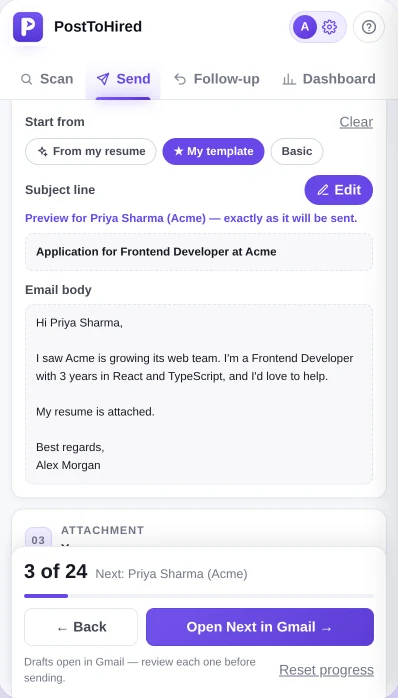
The emails you saved today show up in the Send tab. Write one template with {{Name}} and {{Company}} in it, or start from your resume. Each click on Open Next in Gmail opens one filled-in draft with your resume attached.
- Preview shows exactly what the next person gets, and flags a leftover [Your Name].
- Bold text, bullet points and links come through as real formatting.
- Nothing goes out until you press Send in Gmail.
4 · Follow up
See who opened it, and follow up in the same thread
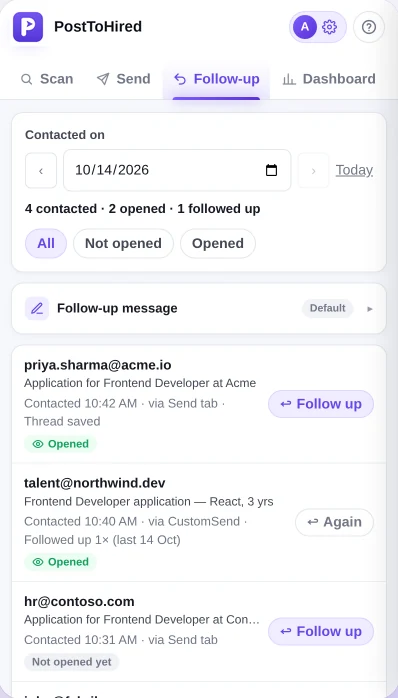
Pick the day you sent your emails. Each one is marked Opened or Not opened yet. Click Follow up and Gmail opens that conversation, presses Reply and fills in your follow-up message.
- Filter to Not opened to see who needs a nudge.
- Opens are a rough signal. Some mail apps block the tracking image.
5 · Dashboard
See how your search is going
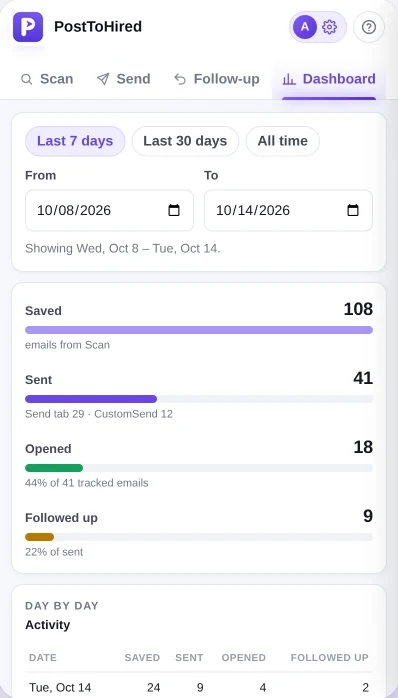
How many emails you saved, sent, got opened and followed up on, for the last week, the last month or any dates you pick. There’s a day-by-day table if you want the detail.
Getting started
About five minutes, most of it spent finding your resume PDF.
Add PostToHired to Chrome
Clicking its icon opens a side panel next to whatever page you’re on.
Sign in with Google and upload your resume
A PDF up to 5 MB. You only do this once.
Scan a LinkedIn search
Search posts for your role plus “hiring”, scroll for a bit, then click Scan This Page.
Open the drafts in Gmail
Read each one, fix anything you want, and send it yourself.
What to search for
Hiring posts with an email in them turn up in every field. Paste one of these into LinkedIn’s search, then switch to the Posts tab.
Tech
java developer hiringfrontend developer hiringQA engineer hiring
Sales
sales executive hiringbusiness development hiring
Marketing
digital marketing hiringcontent writer hiring
HR & Ops
HR recruiter hiringoperations executive hiring
Finance & Support
accountant hiringcustomer support hiring
Design
UI/UX designer hiringgraphic designer hiring
Add a city or “remote” to narrow it down: sales executive hiring mumbai
The fine print
Short version: you decide what gets sent, and when.
- PostToHired never sends anything on its own. It opens drafts, and you press Send.
- It only reads a page when you click Scan. Nothing runs in the background.
- LinkedIn works out of the box. Any other site needs your permission in Chrome first.
- Delete my data, in Settings, wipes your lists, history, resume and settings from our server.
Questions
What is PostToHired?
A Chrome extension for job hunting on LinkedIn. It finds recruiter and HR emails in hiring posts, writes an application email for each one from your resume, and opens it as a Gmail draft. It also tracks opens and helps you follow up.
How do I find a recruiter’s email address on LinkedIn?
Search LinkedIn posts for your role plus “hiring” or “send your resume”. Scroll down so more posts load, open PostToHired and click Scan This Page. Every email in those posts is saved with the post it came from.
Does PostToHired send emails automatically?
No. It only opens drafts in Gmail. You read each one and press Send yourself.
How does the AI write the emails?
It reads the recruiter’s post and your resume, then writes a subject and body for that role with your own links in the signature. You can add instructions, use your own prompt, edit the result or have it rewritten before it opens in Gmail.
Is my resume attached to every email?
Yes. Upload a PDF (up to 5 MB) once in Settings and it’s attached to every draft. You can leave it off a particular send if you want.
How do I know if a recruiter opened my email?
Drafts from PostToHired include open and link-click tracking. The Follow-up tab marks an email Opened once it’s opened or a link in it is clicked. Treat it as a rough signal, since some mail apps block tracking images.
Can I use it on sites other than LinkedIn?
Yes. Add the site under Settings → Advanced and approve the permission prompt Chrome shows you.
Where is my data stored, and can I delete it?
When you sign in with Google, your saved emails, send history, resume and settings are stored on PostToHired’s server under your account. Delete my data in Settings removes all of it.
Try it on one LinkedIn search.
Install it, search for your role plus “hiring”, and see how many recruiter emails were sitting there.
Add to Chrome